
First ride setup
SKS AIRSPY Setup
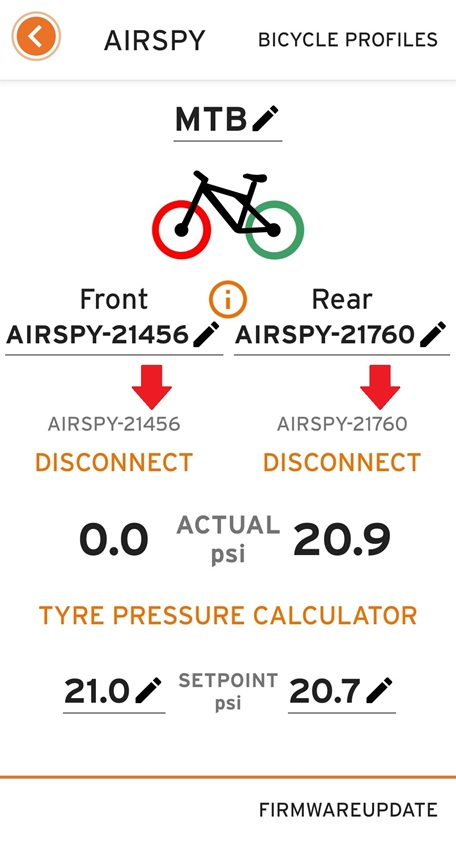
Enter the numeric AIRSPY sensor IDs, assign Front and Rear using the matching slots, and configure pressure targets in TubeWitch settings.

Before you start
- SKS AIRSPY sensors with ANT+ support, fitted according to SKS instructions.
- A compatible Garmin device. Check this app's Garmin Store listing for details and release notes.
- The Garmin Connect IQ mobile app or Garmin Express to change settings.
- The numeric ID printed on each AIRSPY sensor, such as
21760.
Setup Steps
- Install TubeWitch for SKS AIRSPY, reboot your Garmin and restart the Garmin Connect IQ mobile app.
- Add the data field to a data screen and
 leave the TubeWitch field visible.
- Rotate the wheels to wake the sensors.
- Open TubeWitch settings and choose your Unit of Measure: PSI, bar or kPa.
- Open Sensor Set #1. Choose Front & Rear, Front Only or Rear Only under Enabled Sensors.
- Enter the numeric ID printed on each sensor in Front Sensor ID or Rear Sensor ID. Do not enter a Bluetooth address or BLE name.
- Set Front Low Target / Front High Target and Rear Low Target / Rear High Target as needed.
- Back out of the nested Sensor Set and tap Save immediately. Reopen settings to confirm the values were saved.
- Confirm live pressures for both enabled wheels.
Enter the numeric sensor ID
Use the numeric ID printed on the AIRSPY sensor, such as 21760. Enter the front wheel's ID in Front Sensor ID and the rear wheel's ID in Rear Sensor ID.
TubeWitch uses these IDs to read the ANT+ broadcasts directly. Do not pair the AIRSPY sensors with Garmin.
Set pressure targets in TubeWitch
Set separate low and high targets for each wheel in the active Sensor Set. A target of 0 disables that individual limit. When both are set, the high target must be greater than the low target.
Choose units before setting targets
Targets use the selected PSI, bar or kPa unit. Changing units does not convert saved target numbers. Update the targets in all configured sets after changing units, and reboot Garmin.
Saving settings
Keep the TubeWitch data field visible on Garmin when changing settings in the Connect IQ mobile app.
General settings-saving tips
Even when Garmin is working normally, the steps below can help if settings do not save reliably.
First, make sure the TubeWitch data field is visible on your Garmin device before changing settings in the Connect IQ mobile app.
If sensor IDs or other settings are not being saved by the Garmin Connect IQ mobile app, try entering one sensor ID first and saving immediately before entering the second. Garmin's save process can be inconsistent when many settings are changed at once.
Use Garmin Express for the most reliable way to save settings.
If settings still do not save, see Settings Not Saving.
Sensor updates
SKS AIRSPY transmits pressure over ANT+ about four times per second when active. Pressure should appear shortly after setup or after the data field restarts.
"?" indicates the sensor is not delivering data and TubeWitch is trying to reconnect.
"X" indicates TubeWitch timed out for that sensor and stopped searching to save battery. Default timeout is 15 minutes.
Multiple Sensor Sets
TubeWitch supports up to 5 different Sensor Sets, each with its own pair of front and rear sensors.
First, use the Connect IQ mobile app to assign your sensor IDs to each Sensor Set in the TubeWitch settings.
Once all of the sensor sets are saved correctly, there are 3 options for switching between bikes:
Switching Sensor Sets
- Manual Selection: Each time you want to switch bikes, open the Garmin Connect IQ mobile app and change the Active Sensor Set to the Sensor Set # of your choice.
- Auto Switch: Change the Active Sensor Set to Auto Switch. TubeWitch will automatically scan your configured sensor sets, checking each one for 10 seconds until it finds an active pair of sensors.
- Touch Selection: Enable Touch Data Field under Touch Settings. This allows you to cycle between your configured sensor sets simply by tapping on the TubeWitch data field on your Edge.
Auto Switch and Touch Selection can be used together or individually.
To make it easier to see which bike is currently selected, try enabling Show Sensor Set Name under the Sensor Labels section in settings. This helps by showing which sensor set is active when using a wide data field.
Note: The TubeWitch sensor sets are not tied to your Garmin Activity Profiles. Any sensor set can be used with any Profile on your Garmin.
Need more help?
If your setup issues are not addressed here, see AIRSPY Troubleshooting or AIRSPY FAQ.