
Troubleshooting
TubeWitch Troubleshooting
This page covers common TubeWitch setup and Garmin Connect IQ problems, including settings that do not save, missing pressure data, duplicate alerts, FIT recording issues, app upgrade problems, and support access.
 Settings Not Saving
If sensor IDs or related settings do not stick, fix the settings save issue first before troubleshooting the sensors themselves.
ALERT: SAVING SETTINGS WITH THE CONNECT IQ MOBILE APP IS AFFECTED BY A BUG IN THE GARMIN IQ SYSTEM. MAKE SURE THE TUBEWITCH DATA FIELD IS VISIBLE ON YOUR GARMIN DEVICE WHEN CHANGING SETTINGS. IF SETTINGS STILL DO NOT SAVE, TRY GARMIN EXPRESS.
WORKAROUND - Garmin Connect IQ Mobile App
If you are impacted by this Garmin Settings bug, first try modifying settings using these exact steps with the Garmin Connect IQ mobile app.
- Using the Garmin Connect IQ mobile app, uninstall TubeWitch. This will clear all TubeWitch settings.
- Reboot the Garmin device and restart the Garmin Connect IQ mobile app.
- Reinstall TubeWitch.
- Add the TubeWitch data field to a data screen and open that screen to load the field.
- Leave the TubeWitch data field visible on your Garmin device.
- In the Garmin Connect IQ mobile app, open TubeWitch settings, enter the numeric part of each sensor ID, and save immediately.
- Do not go back into the nested Sensor Set before tapping Save.
- Confirm your live pressures.
If this works, keep the TubeWitch data field visible on your Garmin device when making future settings changes.
WORKAROUND - Garmin Express
If the issue persists, modify settings using these exact steps with Garmin Express.
- Using the Garmin Connect IQ mobile app, uninstall TubeWitch. This will clear all TubeWitch settings.
- Reboot the Garmin device.
- Using the Garmin Connect IQ mobile app, reinstall TubeWitch.
- Add the TubeWitch data field to a data screen and open that screen to load the field.
- Close all Garmin apps on your phone and turn off Bluetooth.
- Connect the Garmin device to a computer and use Garmin Express to modify the settings. See Video
- When done, sync the Garmin device using the Garmin Connect mobile app.
- Reboot your Garmin device.
- Confirm your live pressures.
If the issue continues, contact TubeWitch support and include which Garmin device you are using.
General settings-saving tips
Even when Garmin is working normally, the steps below can help if settings do not save reliably.
First, make sure the TubeWitch data field is visible on your Garmin device before changing settings in the Connect IQ mobile app.
If sensor IDs or other settings are not being saved by the Garmin Connect IQ mobile app, try entering one sensor ID first and saving immediately before entering the second. Garmin's save process can be inconsistent when many settings are changed at once.
Use Garmin Express for the most reliable way to save settings.
Nested settings revert before saving
If you back out of a Sensor Set or other nested settings group in the Garmin Connect IQ mobile app and then go back into it before saving, Garmin will revert to the old values. See Video
This behavior is confusing, but it is normal for Garmin's nested settings screens.
To force a save, back out of the nested settings group and tap Save immediately from the main settings screen.
After saving, reopen TubeWitch settings in the Garmin Connect IQ mobile app and drill back down into the nested settings group to confirm the new values are there.
Other Settings Issues
When opening TubeWitch settings, an error message is shown
Garmin Connect IQ mobile app: "Cannot Load the web page. Try again later."
Garmin Express: "Error Loading Settings - We had a problem loading settings from this device. Please try again."
This usually means Garmin's settings service is temporarily unavailable. Try again later.
My Sensor ID starts with a leading 0, but after I save it in the settings it only shows 4 digits?
The settings input box trims leading zeroes, but that does not break sensor pairing. Garmin uses the sensor ID as an integer value for ANT+ matching, so the leading zeroes are not needed. For example, if your sensor ID is 01234, it will show 1234 after saving.
If the rest of the setup is correct, the sensor can still connect successfully.
It will not let me enter my full sensor ID: HGL15841
TubeWitch sensor ID fields accept numbers only.
Enter only the numeric five-digit portion of the sensor ID. For HGL15841, enter 15841.
No Pressure Data
If no pressure is shown after setup, first confirm the sensor is working properly before changing other settings.
Check the sensor, manufacturer's mobile app, and saved ID
- Rotate the wheels to wake the sensors and look for a flashing LED.
- Replace the battery if the sensor does not wake up.
- Confirm the sensor can be reached through the manufacturer's mobile app: SRAM AXS for TyreWiz/Zipp sensors or the Schwalbe app for AIRMAX.
- In the manufacturer's mobile app, make sure each sensor is assigned to the Front / Rear position and a pressure target is specified.
- Then, open TubeWitch settings and confirm the correct sensor ID was actually saved.
- In TubeWitch Settings -> Sensor Labels, temporarily enable "Show Sensor IDs" to confirm the IDs are set correctly. You may need to use a wide Garmin field to see the full Sensor ID.
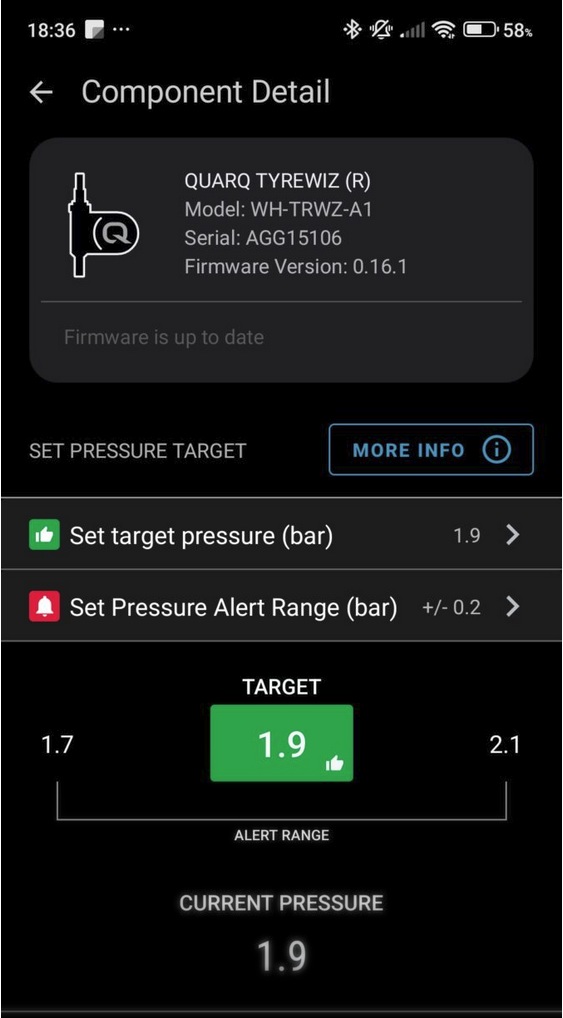
Acknowledge the open-connection message
Messages about sensors using open connections are expected during initial setup and appear once per sensor.
You must acknowledge that message for each sensor before data can be received. If the prompt was missed, reboot the Garmin device to trigger it again.
Remove other TyreWiz or TPMS data fields
If another TyreWiz or TPMS data field is also installed on the Garmin device, it will block TubeWitch from reading the sensors.
Uninstall any other TyreWiz or TPMS data field, then reboot the Garmin device.
Try Sensor Compatibility Mode
If a sensor's Front / Rear position or pressure target is not set in the manufacturer's mobile app, TubeWitch will not be able to read it. Generic TPMS ANT+ sensors may also not be supported by default. Try enabling TubeWitch Labs -> Sensor Compatibility Mode. This may allow TubeWitch to detect these sensors.
Rebooting Garmin Devices
After confirming the above settings, make sure to fully reboot your Garmin device.
On Edge devices, press and hold the power button until the device shows the option to power off. If the device is frozen, hold the power button for about 10 seconds until it powers off or reboots.
On most Garmin watches with a physical power button, press and hold the power button until the watch powers off, then press the power button again to turn it back on. On Garmin watches without a power button, connect the watch to the charging cable, wait a few moments, then disconnect it to restart it.
Wrong Pressure Status / Alerts
Live pressure can appear while the high or low status is still wrong if the sensor itself was configured differently in the manufacturer's mobile app.
Pressure status looks wrong
First, use SRAM AXS for TyreWiz/Zipp sensors or the Schwalbe app for AIRMAX to confirm each sensor is assigned to the Front / Rear position and a pressure target is specified.
- Confirm each sensor is assigned to the correct wheel position.
- Confirm the target pressure matches the tire and setup you expect.
- If live pressure appears but the status still looks wrong, confirm the correct sensor IDs are entered in TubeWitch.
Pop up and/or vibration alerts are not working
- Make sure alerts are enabled in the TubeWitch Settings for both high and low pressure alerts.
- Check the Alert Delay setting. If it is too large, the alert may not trigger when expected. The default is 10 seconds.
- Vibration alerts are available on Garmin watches only.
- Popup alerts are available on Edge x40 devices and newer, and on newer Garmin watches.
Data field restarts after returning from the Garmin home screen
With Edge firmware 31.29+, Garmin changed how Connect IQ data fields behave. The release notes included this line: "Fixed CIQ data fields causing UI lag/freeze. CIQ data fields will now start when you enter the timer loop or when an activity is started."
With this firmware, if you go to the Garmin home screen and then return to a data screen with the TubeWitch data field while no activity is recording, TubeWitch will restart and search for sensors again. If an activity is running or paused, TubeWitch should not restart when returning to the data screen.
This firmware change also means the TubeWitch data field must be visible on your Garmin device when changing TubeWitch settings in the Connect IQ mobile app.
FIT Recording Problems / Crashes
If Garmin shows the IQ logo or one of your Connect IQ apps restarts during recording, the combined FIT recording load may be too high.
If Garmin data fields are recording too many FIT data points
Garmin limits how many custom FIT data points Connect IQ apps can record at once. TubeWitch records 5 custom FIT fields by default and up to 10 when all Activity Recording options are enabled.
Other IQ data fields or apps may also record custom FIT fields. If the combined total gets too high, one or more apps may restart and show the IQ logo.
To reduce the number of data points that TubeWitch is recording, disable items in the Activity Recording section of TubeWitch Settings, then reboot Garmin before testing again.
Activity Recording field counts:
Default recording fields:
- Record Front Pressure: 2 fields (Front Pressure, Avg Front Pressure)
- Record Rear Pressure: 2 fields (Rear Pressure, Avg Rear Pressure)
- Sensor Set Name: 1 field when activity recording is enabled
Optional recording fields:
- Record Front Pressure Alarm: 1 field
- Record Rear Pressure Alarm: 1 field
- Record Front Pressure Stale Data Indicator: 1 field
- Record Rear Pressure Stale Data Indicator: 1 field
- Record Sensor Set #: 1 field
App Upgrade Problems
The most common TubeWitch upgrade issue is the Garmin Connect IQ mobile app continuing to show an update even after the data field was already queued or installed.
Garmin Connect IQ mobile app still shows "Updating" after a TubeWitch upgrade
If upgrading from an earlier version of TubeWitch, the Garmin Connect IQ mobile app may appear stuck on "Updating," or it may queue and update the data field but show that an update is still available.
If this happens, reboot your Garmin device and restart your Garmin mobile apps to allow the update to complete and for any new settings to appear in the TubeWitch Settings.
TubeWitch Support
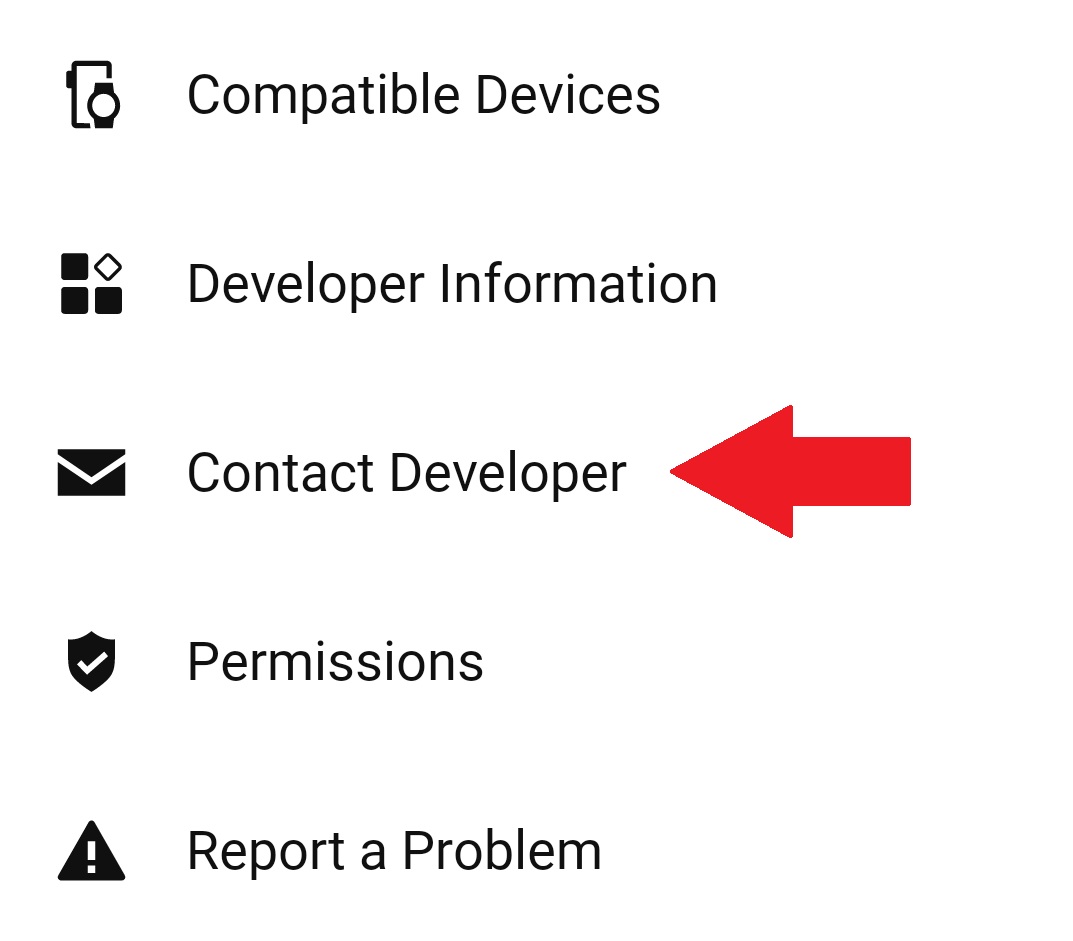
Use Garmin's in-app Contact Developer link to contact TubeWitch support.
How do I contact support?
Use the Garmin Connect IQ mobile app.
- Open the TubeWitch Garmin App Store page.
- Tap Open in App.
- Scroll to the bottom of the TubeWitch app page, then tap Contact Developer.
Include your email address to receive a reply.